kantorbola Mobile App
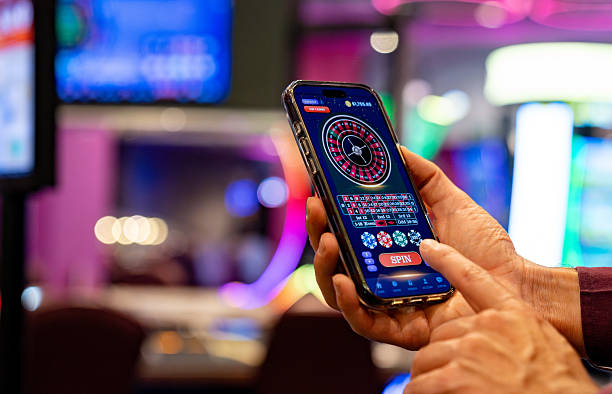
Our kantorbola platform is built for mobile-first use, whether you access it via Android app, iOS browser, or web on your smartphone or tablet. We designed every flow—from account setup through withdrawal—around the way you actually use your device, especially during peak moments like Liga 1 matchdays or Idul Fitri holidays when live betting traffic peaks.
- SHA256 Match
- Installin
- LoginOTP Verification
- StartFirst Game
Mobile access on kantorbola means you do not need to download from a third-party app store; you can install our Android APK directly, use iOS through your Safari browser, or simply bookmark our web version. Each path offers the same account, the same payment methods (DANA, e-wallet, mobile banking, local payment, online payment, and major Indonesian banks), and the same withdrawal security checks. We do not force you into one channel—choose what fits your device and preference.
Getting started on kantorbola mobile takes a few minutes. This guide walks you through the installation options, what to expect during setup, and how mobile access keeps your account data protected at every step. Our services are available only where local law permits; you remain responsible for verifying that access complies with your own jurisdiction.
Installation paths for kantorbola
We offer three ways to use kantorbola on your mobile device. Android users can download and install our APK file directly—this gives you an app-like experience with offline caching and push notifications for live-game alerts. iOS users access kantorbola through Safari or Chrome and can add a shortcut to your home screen, which behaves much like an app. All users can also visit kantorbola.app in any mobile browser and use the full web version without installation.
No matter which path you choose, your kantorbola account remains the same. Funds, game history, account settings, and withdrawal requests sync across all devices instantly. If you switch from Android to iOS or back to web, you log in with your same credentials and pick up where you left off.
Mobile installation steps on kantorbola
- Download: On Android, visit kantorbola.app or use the direct APK link; tap the download button and allow your browser to save the file to your device.
- Install: Open your file manager, locate the kantorbola APK, and tap to install. If your device asks about unknown sources, confirm that you trust the installation.
- Create account: Launch the kantorbola app or website, tap Register, and fill in your email, username, password, and phone number (we use this for two-factor authentication and withdrawal verification).
- Start using kantorbola: After registration, navigate to Live Games, Football Markets, or Slots—deposit via DANA, e-wallet, or your preferred payment method, and you are ready.

App versus browser on kantorbola
Our kantorbola Android app offers offline cache, so recent game odds and account details load even if your connection dips momentarily—crucial during Piala AFF tournaments when network traffic surges. The app also sends push notifications for live-match updates and withdrawal confirmations, so you never miss a withdrawal approval. Load times on the app are typically faster because we pre-load assets. However, the browser version works equally well and requires zero installation; you simply open Safari or Chrome and bookmark kantorbola.app. Browser updates happen instantly—you always have the latest version. Choose the app if you want offline performance and notifications; choose the browser if you prefer minimal storage and instant updates.
Device compatibility on kantorbola
kantorbola supports Android 7.0 and later on phones and tablets. For iOS, we recommend iOS 12 or later and current Safari, Chrome, or Firefox browsers. On older devices (Android 6 or earlier, iOS 11), you may experience slower load times or missing features, but the platform remains accessible through the web version. If you have a very weak internet connection in areas like rural Semarang or Bandung suburbs, use the app's offline cache—it stores your recent bets and account balance so you can review transactions without a live connection.
Check your device storage before install
The kantorbola app uses approximately 60–80 MB of storage. Older Android phones with low free space may fail during installation; clear cached files or uninstall unused apps first.
Fixing common installation issues on kantorbola
If installation fails on Android, the most common cause is that your device blocks downloads from unknown sources. Go to Settings > Security > Unknown Sources (or "Install Unknown Apps" on newer Android), enable it for your browser, and retry. Some mobile banking or local payment work devices may have strict device-management policies that prevent APK installation; if so, use the browser version instead—it works identically. On iOS, you cannot install an APK; Safari users simply bookmark kantorbola.app to their home screen. If the website does not load, clear your browser cache (Settings > Safari > Clear History and Website Data) and try again. Certificate warnings are rare, but if you see one, do not proceed—contact our support team via Live Chat to confirm legitimacy.
Data, permissions, and account security on kantorbola
When you install kantorbola, we ask for camera and location permissions only if you choose to use our live-dealer video streams or geolocation-based promotions. We never share these with third parties. Your account data—login credentials, payment method details, withdrawal history—is encrypted in transit and stored securely. Every withdrawal request undergoes automated review before it reaches your bank account; if we flag a transaction for manual review (for example, if you add a new withdrawal bank account), we notify you via email and SMS, and you may be asked to re-verify your identity using your national ID number and a selfie. This KYC step protects both you and our platform. Two-factor authentication (2FA) is available in your Account Settings; we strongly encourage it, especially if you use kantorbola during high-activity periods like Idul Adha or Imlek holidays when fraudsters are more active.

What to do after you install kantorbola
Once kantorbola is running on your device, your first step is to complete account verification. We collect your name, date of birth, national ID (KTP) number, and a phone number during registration. Before you can deposit, we may ask you to upload a photo of your ID and a selfie holding it—this is our KYC (Know Your Customer) check and typically takes a few minutes to approve. We do this to comply with local financial regulations and to prevent fraud and money laundering.
Next, add a payment method. kantorbola accepts DANA, e-wallet, mobile banking, local payment, online payment, e-wallet, and direct bank transfers from mobile banking, local payment, online payment, and e-wallet. Link your preferred method in Settings > Payment Methods, and you can deposit from your next session onward. Deposit amounts are flexible—we describe ranges only in generic terms (small, standard, large) to avoid fixed-amount claims. Withdrawals use the same method you deposited from, unless you add a second bank account and verify it with a small test deposit first.
Finally, set a strong password (at least 12 characters, mixing letters, numbers, and symbols), enable 2FA if your account is a frequent high-value user, and bookmark or add kantorbola to your home screen so you can access it easily. If you ever forget your password, use the Forgot Password link on the login screen—we send a reset link to your registered email. Our support team is available via Live Chat if you have questions about installation, payment, or account security. We are here to help you use kantorbola safely and confidently, knowing your data and funds are protected.
If you encounter any issue during installation or account setup, reach out via our Live Chat. We respond during standard business hours and aim to resolve device and installation questions quickly.